
Scaffolding a Xojo application part 2
In part 1 I gave an overview of the application development system Xojo and introduced project templates. This article is a much deeper dive into the application, focusing on the components that I chose to include in the template.
Part 2. Components, rationale and design
Let's start with why I want to do this at all. It turns out that for many of the Xojo projects that I've developed over the years, there are common components that I need to create in addition to the basic functions provided in Xojo. Here are a few features that crop up time and time again.
- Managing preferences
- Managing log files
- Building and handling menus
- Convenience methods like quoting a string, creating a UUID, incrementing an integer, and many others (I often use extension methods to do this)
- Managing RESTful web services (I'm not going to cover this topic in this article, but you can read about it in other articles of mine)
So in the simplest scaffold application I wanted to provide these features. Let's start with preferences and then move on to logging, menus and extension methods.
Handling application settings
In my applications I use the Modern Preferences module. This module has some very useful features:
- Stores settings in JSON format
- Stores settings in any location that you choose (I tend to use ~/Library/Application Support/[application-name])
- Manages string and integer settings
- Hides a lot of the detail from the developer, making it easier to use
This module uses an old Xojo code base and is no longer under active development. I'm not even sure who developed it, though I think it emerged from a 2014 blog article by Paul Lefebvre. It also has its fair share of quirks (one reason that I am documenting it in some detail here!). However, on balance it works well and does what I want, so I'm sticking with it.
Installing/configuring ModernPreferences
There is no installation step, since Modern Preferences is already installed in the scaffold application. You will need to set the application name in the App.Opening event:
ModernPreferences.Initialise("Scaffold")You will also need to add in a little hack in the same event. In a nutshell, the first time the application runs it will trigger an exception unless there are some default values for your settings. In the scaffold application I have just added integer settings for the top and left positions for the main window, and a boolean setting called "Ready" (this doesn't do anything and is just there for illustration).
If Not Preferences.Load() then
  Preferences.WinMainTop = 250
  Preferences.WinMainLeft = 500
  Preferences.Ready = True
end if
Actually, there is a simple way to configure the scaffold application to handle both ModernPreferences and Log4Xojo. Just use the Find/Replace function in Xojo's IDE to find all instances of "Scaffold" and replace them with your application name. For example, if you are creating a new application called "EpicApplication", do this (see screenshot)
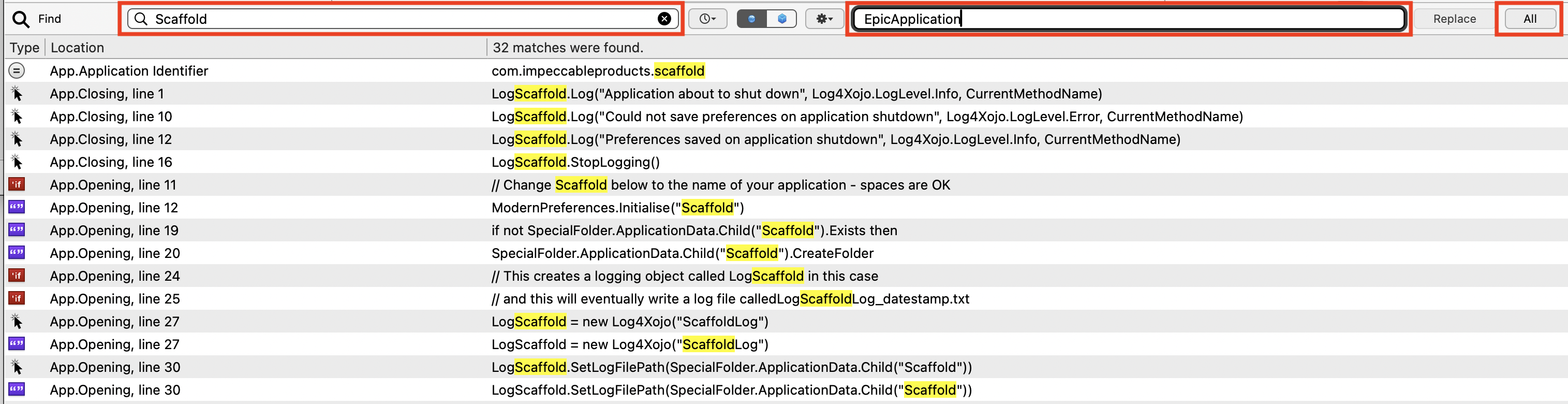
Note: this will only work for application names that do not have spaces. If your application has a space in its name (for example "Epic Application" rather than "EpicApplication") then you will need to do this manually. You can still use Find/Replace, but you'll have to use the Replace button rather than the All button.
Using ModernPreferences
ModernPreferences has a few convenience methods - Load, Save, Get and Set - and these are really all that you need to use.
Preferences.Load attempts to populate the preferences object out of the settings file. Returns a Boolean.
If Not Preferences.Load() then
  Preferences.WinMainTop = 250
  Preferences.WinMainLeft = 500
  Preferences.Ready = True
end if
Preferences.Get() assigns a value to a variable out of the specified preference. This is one of the peculiarities (in a good way) of ModernPreferences; it returns a variable of type auto. This enables the Get method to assign string, integer, boolean or other variables from stored preferences.
Dim top As Integer = Preferences.Get("WinMainTop")
Dim left As integer = Preferences.Get("WinMainLeft")

winMain.Top = top
winMain.Left = left
Preferences.Set() takes a current variable and assigns it to a preference. Here is the Moved event for winMain as an illustration
Preferences.Set("WinMainTop") = winMain.Top
Preferences.Set("WinMainLeft") = winMain.Left
Preferences.Save() attempts to save the current preferences object out to the settings file. It returns a Boolean.
If Not Preferences.Save Then
  app.LogScaffold.Log("Could not save preferences when closing configuration window", Log4Xojo.LogLevel.Error, CurrentMethodName)
else
  app.LogScaffold.Log("Preferences saved when closing configuration window", Log4Xojo.LogLevel.Info, CurrentMethodName)
End If
Note: this also illustrates the logging functionality.
Handling log files
I use the excellent Log4Xojo module, created (I think) by Gabriel Ludosanu and available in Github, here. There is good documentation for it too, here. So I'm restricting my discussion of it to how I use it in the scaffold application. Trust me, it's worth learning about it.
Installing/configuring Log4Xojo
Like ModernPreferences, Log4Xojo is already installed in the scaffold application. The app.Opening event contains some defaults:
if not SpecialFolder.ApplicationData.Child("Scaffold").Exists then
  SpecialFolder.ApplicationData.Child("Scaffold").CreateFolder
end if
and
LogScaffold = new Log4Xojo("ScaffoldLog")

LogScaffold.SetLogFilePath(SpecialFolder.ApplicationData.Child("Scaffold"))
LogScaffold.SetMaxLogFileSize(1024 * 1024) // 1048576, 1MB
LogScaffold.SetMaxBackupFiles(5)
LogScaffold.SetLogLevel(Log4Xojo.LogLevel.Info) // Capture all log levels
LogScaffold.SetLogDestinations(Log4Xojo.LogDestination.FileLog) // not using DebugLog - don't know what it does
App.closing stops logging:
LogScaffold.StopLogging()
Hopefully these options are self-explanatory. Just to reiterate a point that I made earlier; the special folder ApplicationData refers to the folder location ~/Library/Application Support. In this case there is a folder called Scaffold that is used for logging information.
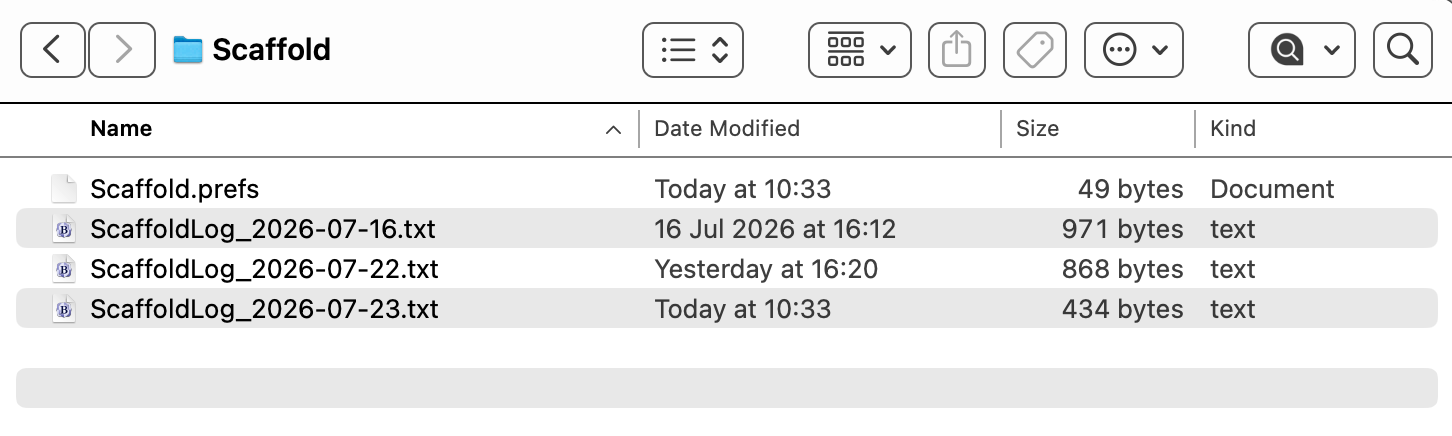
Using Log4Xojo
The main method to use is the Log method.
LogScaffold.Log("Application starting up", Log4Xojo.LogLevel.Info, CurrentMethodName)Just put a Log method call anywhere in your code where you want to capture a loggable event. Loading, saving, and rolling logs all happens behind the scenes.
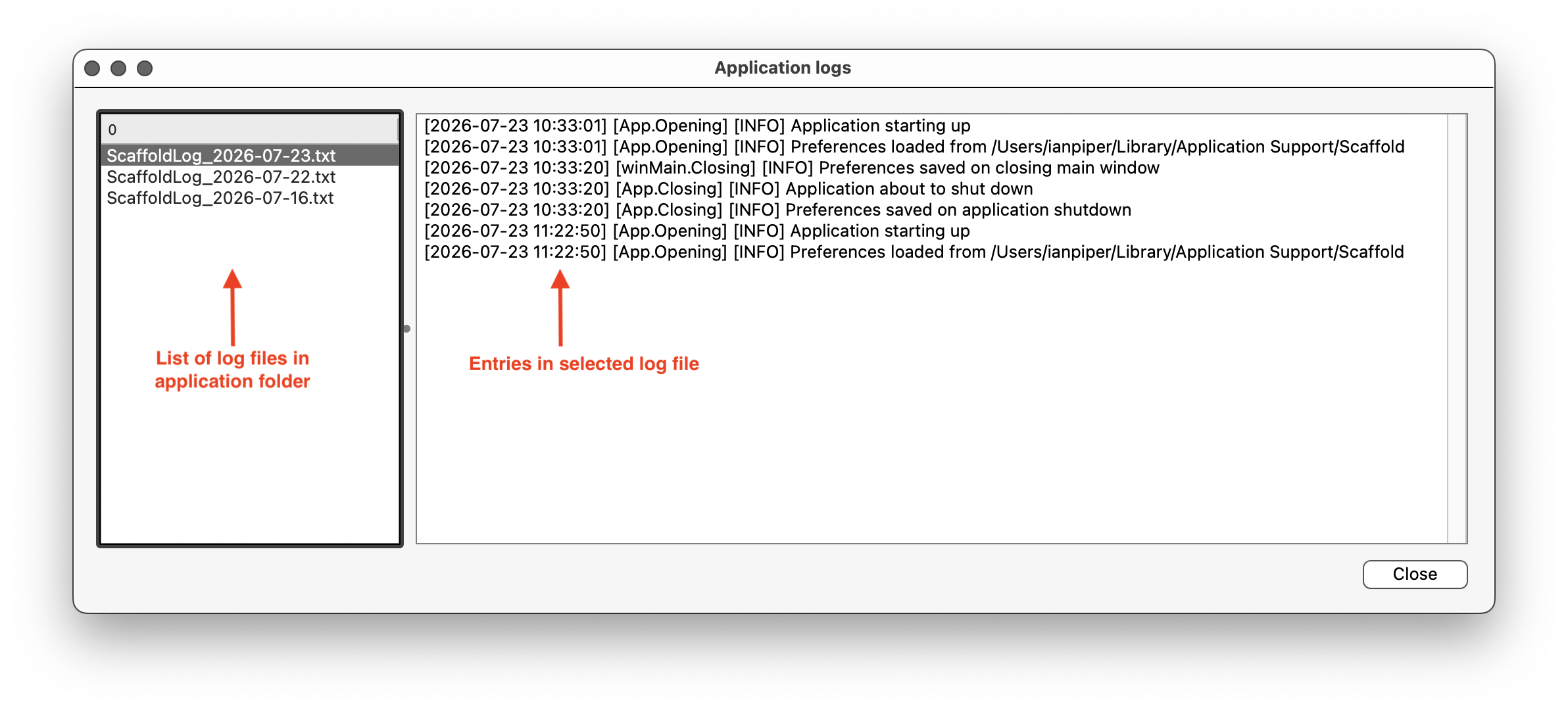
In the winLog window I have also added features to load up the log files from the logging folder and display their contents.
Menus
To me, menus are one of the very few areas of poor usability in Xojo. I'm sure that hardened Xojo pros will lift an eyebrow at this assessment, but there it is.
Creating a new menu item
I should start by saying that I mainly develop on the Mac and for the Mac. This matters for menus, because they behave differently on other platforms. So everything I talk about here is relevant to Mac developers and users, but I can't speak for other platforms.
Creating menus - that is, menu bar items and their sub-menus - feels like the sort of thing that should be a a visually-driven process. And the first stage in menu creation is quite visual. If you select the MainMenuBar section in the navigator you see a blue backdrop and a new toolbar. This toolbar is where menu bar items and menu items are added. The other toolbar buttons are reasonably self-explanatory, once you are oriented to the fact that the toolbar exists (it was far from obvious to me).
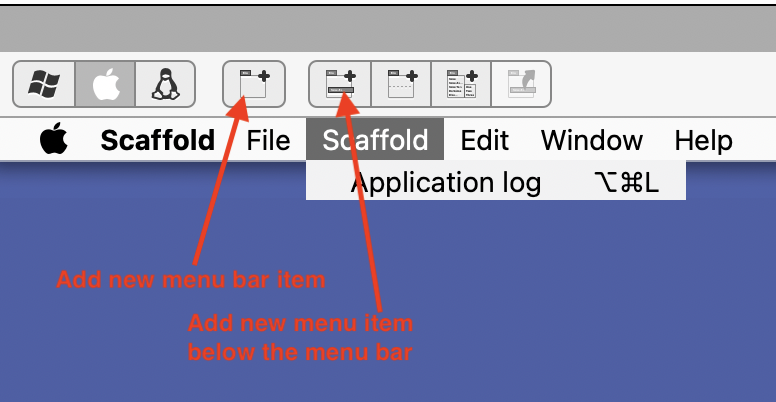
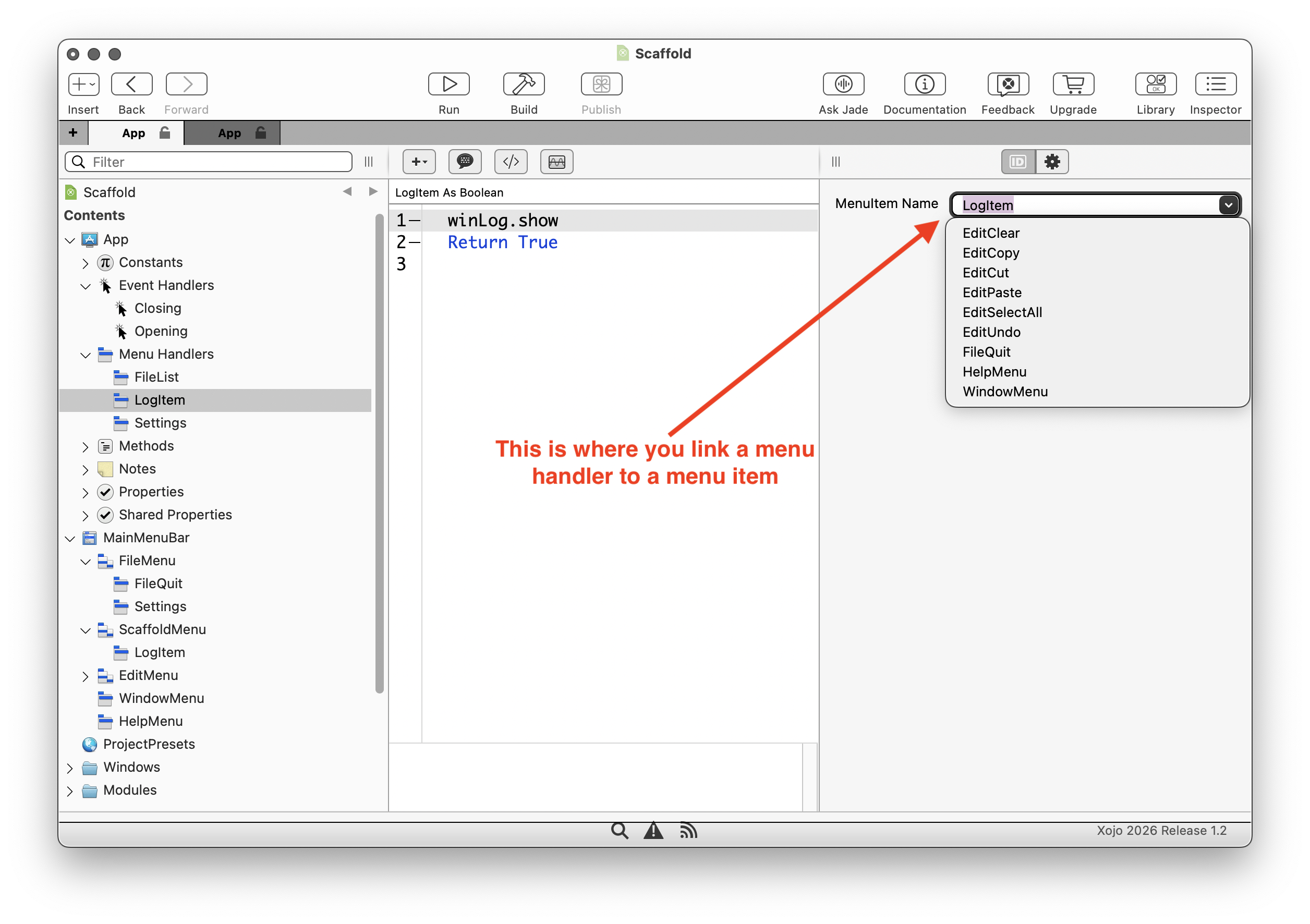
So far, so good. But to actually make a menu do anything, you then need to create menu handlers. You need to create a new menu handler in the navigator, then link it to a menu item using a combo box to the right, and finally add the code that needs to run when the menu is selected. It seems like a bit of a faff to me.
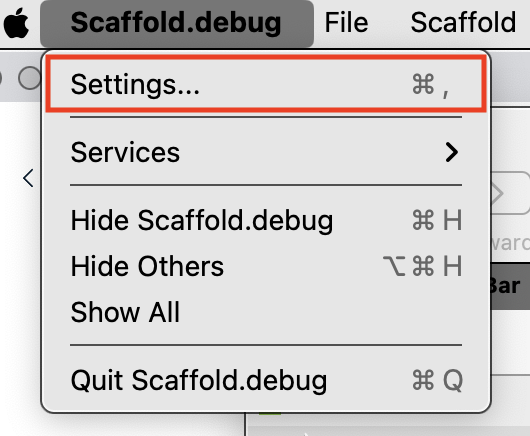
There is one other counter-intuitive aspect to menu creation. By convention, applications have the settings section activated by a menu that sits under the application menu, and also by convention has a command-comma shortcut (⌘-,). But it's not that obvious how to put a menu item under the application menu. What you need to do is to create the new menu item under another menu bar item (such as File), and then change its superclass from DesktopMenuItem to DesktopApplicationMenuItem. Nothing obviously changes in the design, but when you run the application you will see the Settings menu item now appears under the Application menu rather than the File menu.
I don't know why Xojo makes it so difficult to build usable menus. I expect that it is related to the multi-platform nature of Xojo, but it is an inelegant and kludgy solution.
Extension methods
I only recently learned about these, and I think they are a great addition to Xojo. There is an article on them here. I can't give a better account than this article, so I will restrict this section to a description of specific extension methods that I have used in the Scaffold application.
Incrementing integers
This extension method allows you to avoid constructs like
i = i + 1
and instead write this
i.inc
or, if you define the method to use parameters
i.inc(2)
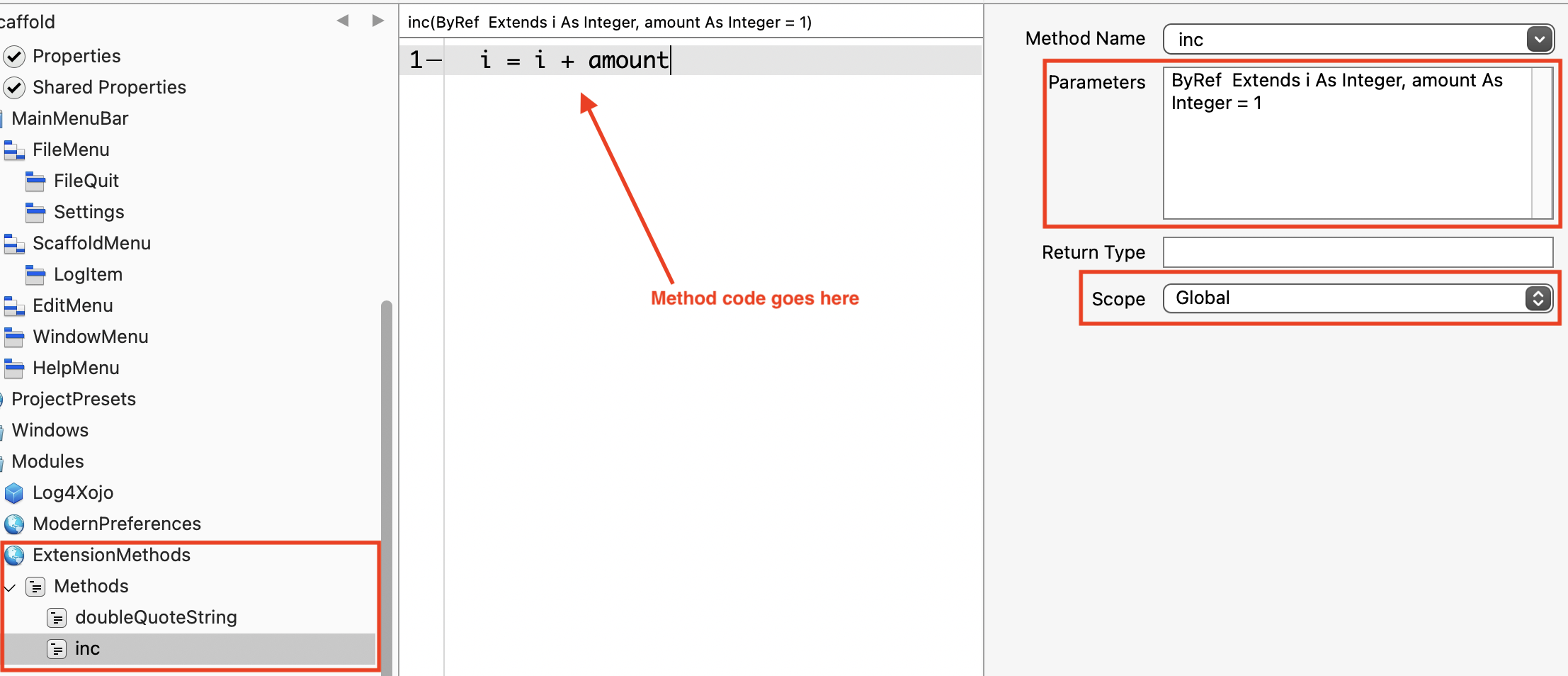
Here is how I did it in the scaffold program. I created another module in the Modules folder, and then created a global method within it, like this:
Double-quoting a string
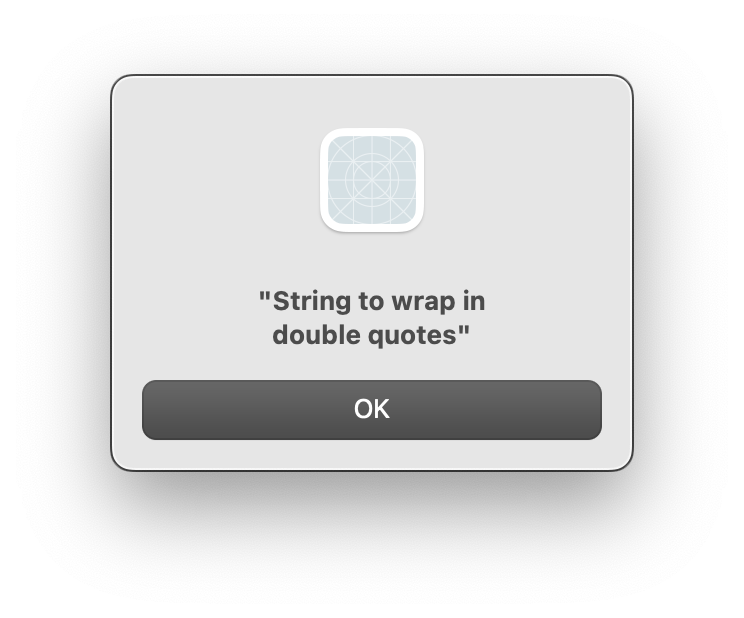
This was the bane of my developing life for ages. Quite often in my work I have had to assign a string variable that contains double quotes buried within it. It's harder to do than it may initially seem if you've never had to do it, and I continually had to re-learn it. This extension method makes it easy.
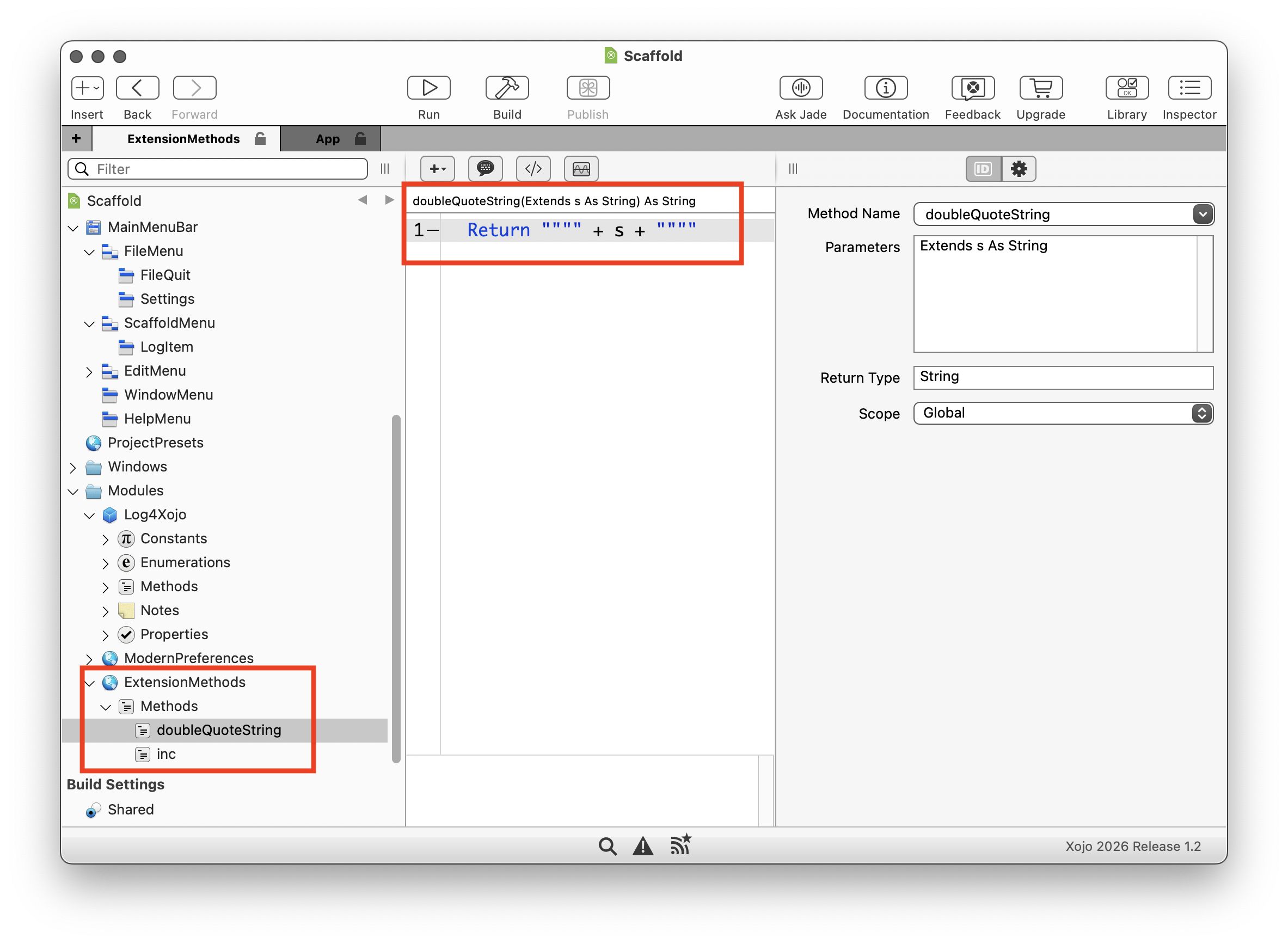
You can use it like this:
dim str As string = "String to wrap in double quotes"
msgbox str.doubleQuoteString
The result in the running application:
This brings me to the end of this two-part article set on scaffolding a Xojo application. Feel free to get in touch with any comments or suggestions for improvement that you may have.