
Scaffolding a Xojo application part 1
This is part 1 of a short series on designing and building scaffold applications in Xojo. Read this for an overview and basic usage information. Part 2 goes into the nitty gritty details of what I put into my own scaffold application.
Part 1. Overview of Xojo and Project Templates
Xojo is a cross-platform development tool, and it is my favourite programming language and environment. It has been around under one name or another since 1996 (you can read the history in Wikipedia, here), and from its roots as a kind of visually driven BASIC has matured into a very powerful object-oriented programming tool. When I describe it as "cross-platform" I am referring both to the target platform - Xojo creates native applications for Mac OS, Windows, Linux, web, IOS, Android and Raspberry Pi from a common code base and language - and the development environment itself (from the original Mac-only tool there are now also Xojo environments for Windows and Linux).
Xojo is my first port of call when I need to create an application. It's easy and quick to design data structures and visual layouts, and the language is logical and feature-rich.
One of Xojo's most attractive aspects is its support for plug-in tools. There are probably hundreds of such tools (I'm not going to list them), free and commercial, that add extra functionality. I particularly like the Monkeybread software and Einhugur software tools, but there are many others.
The main drawback that I find in using Xojo is that every time I create an application, in effect I'm starting with a blank page. I have to create all of the windows, methods and data structures afresh for each new thing that I build. I find that I often need to use similar features in new applications, such as stored preferences, logging systems and so on, and end up looking in older projects to find similar code, then shoe-horning it into my new project. Another problem is that I'm not a natural; unfortunately I don't get programming, so even once I've struggled and found a solution to a problem (how do you insert a quoted string into a variable?) I don't retain it. To some extent I get around this by heavily commenting all of my code, but it's not a solution.
This is what lies behind this article series; I wanted to see how feasible it would be to build, in effect, a scaffold for a new application, with all of the most commonly-used features already in place. Xojo includes the facility to create what it calls template applications, which you can choose when starting a new project. My idea was to design and build a simple, empty template application of my own that contained a set of basic windows - main application window, settings window and log display window - plus a standard set of menus and some code improvements that I've recently learned to use (e.g. extension methods and libraries).
Does this seem like a trivial aim? Probably, if you are a professional (or even gifted amateur) developer. But don't worry - this article is not aimed at you. The goal isn't trivial when you bear in mind that I am not a gifted programmer, so I often need to re-learn how to do things that I have already done. Also, some of the things I want to include in my scaffolding are fairly complex third-party (free) code modules, and these are not necessarily plug and play, and almost never accessibly documented. So I wanted to use the scaffold application to provide pointers in the code to make it as easy as possible in future to use these complex modules.
Anyway, I've always believed in the maxim that if you haven't documented it, you haven't done it, so this article will also serve to be the high-level documentation. So, here is my attempt at building a Xojo scaffold application.
A template application
The application itself doesn't do anything. That's deliberate; it's intended to be a blank canvas. Running the application shows a simple window with no controls. From the main menu, or via keyboard shortcuts, it is possible to load a settings window and a log display window. This is how it looks at run-time on a Mac.
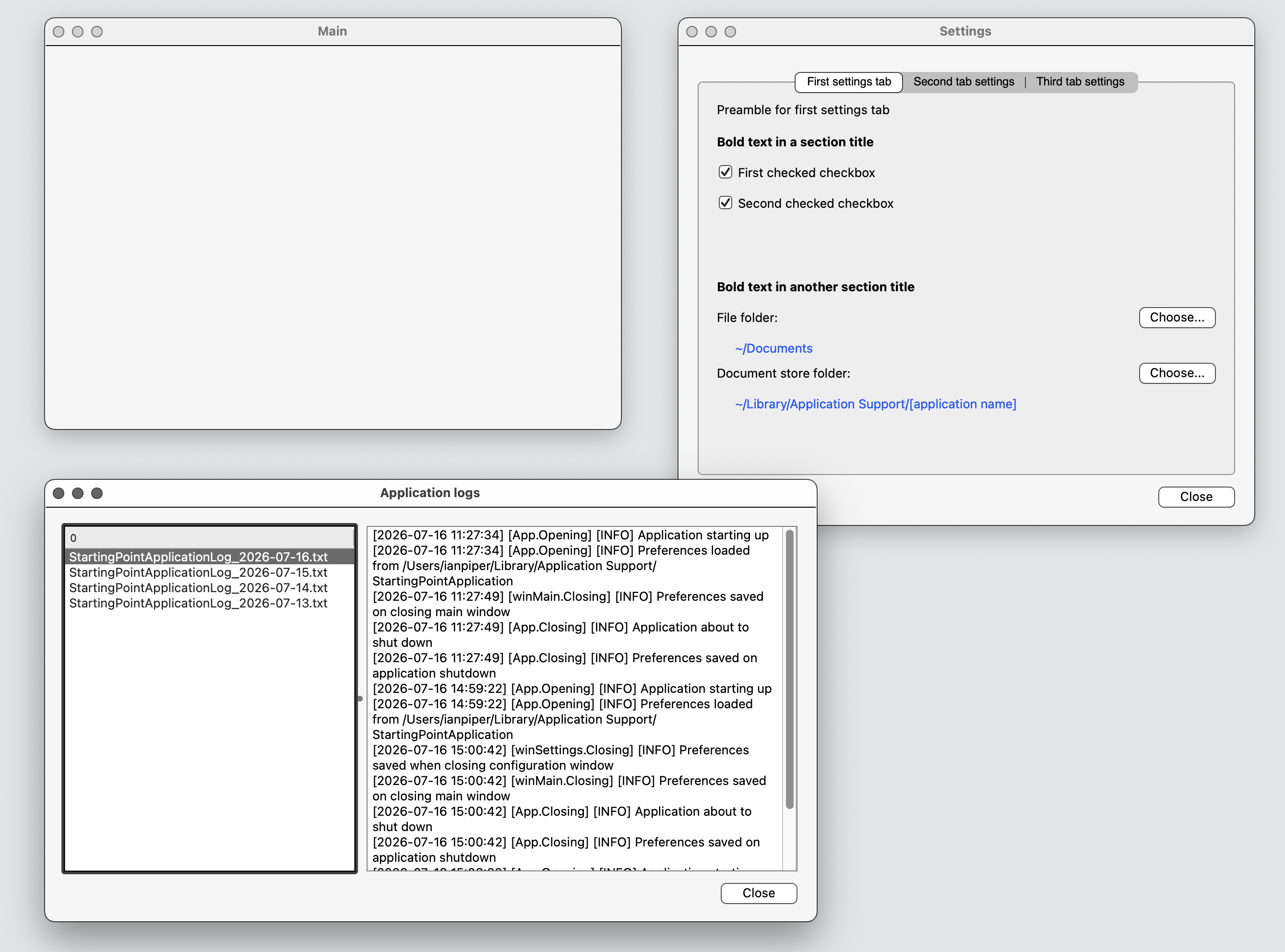
At the top left is the main window, devoid of controls as I mentioned. To the right is a settings window that conforms to the kind of design that I like to use - multiple tabbed panels to separate out the different types of settings. At the bottom is the log window. This two-panelled window has a list of log files, with the individual events shown for the selected log. I tend to log my applications quite verbosely and to log different levels of severity. That's defensive coding, by the way; lacking genuine programming talent, I find it helps me to identify bugs. I suppose I should really learn more about exception handling and using the debugger.
Starting the scaffold project
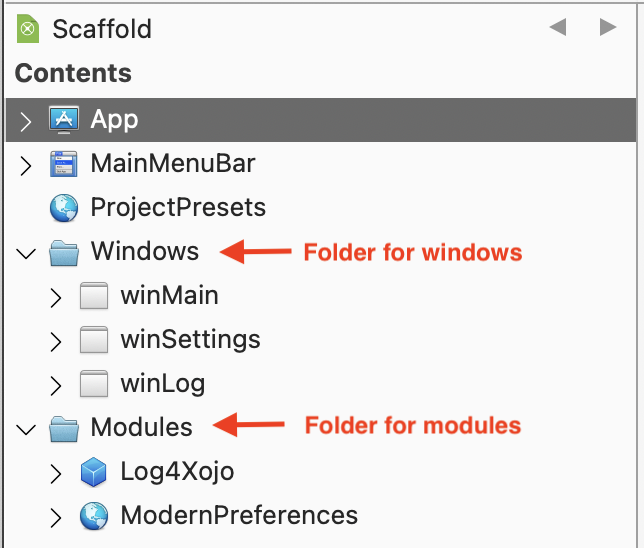
I'm a great supporter of order, so I like to arrange the components in my Xojo projects in a logical fashion. I created folders in the UI for Windows and Modules. Having these features in folders doesn't affect your ability to directly refer to them in code - Xojo will still find them. Note too that the folders are reflected in the resulting Finder structures.
A note on nomenclature
Xojo doesn't impose any rules on naming of things. However, for consistency and clarity I follow a few rules:
- Window names start with win in lower case followed by a capitalised descriptive name.
- Other UI features follow a similar pattern. A listbox is named something like lstInformation, command buttons begin with btn, labels begin with lbl, and so on.
- Class names are capitalised. For example, if I create a class for a semantic triple I will call it Triple.
- Methods, variable names, and properties use camel case; that is, they start with a lower case letter followed by capitalised descriptive words. So a method to write a log file to disk would be named something like writeLog.
There's more detail, but hopefully the picture is reasonably clear; use consistent and meaningful names.
How template projects work
Template projects are stored in the Project Templates folder under the Xojo application folder. To create a template project, simply create the project in the normal way, then save it. Choose the Xojo application > Project templates folder, The new project will be saved here. These screenshots show the folder location and contents after I created the Scaffold application.
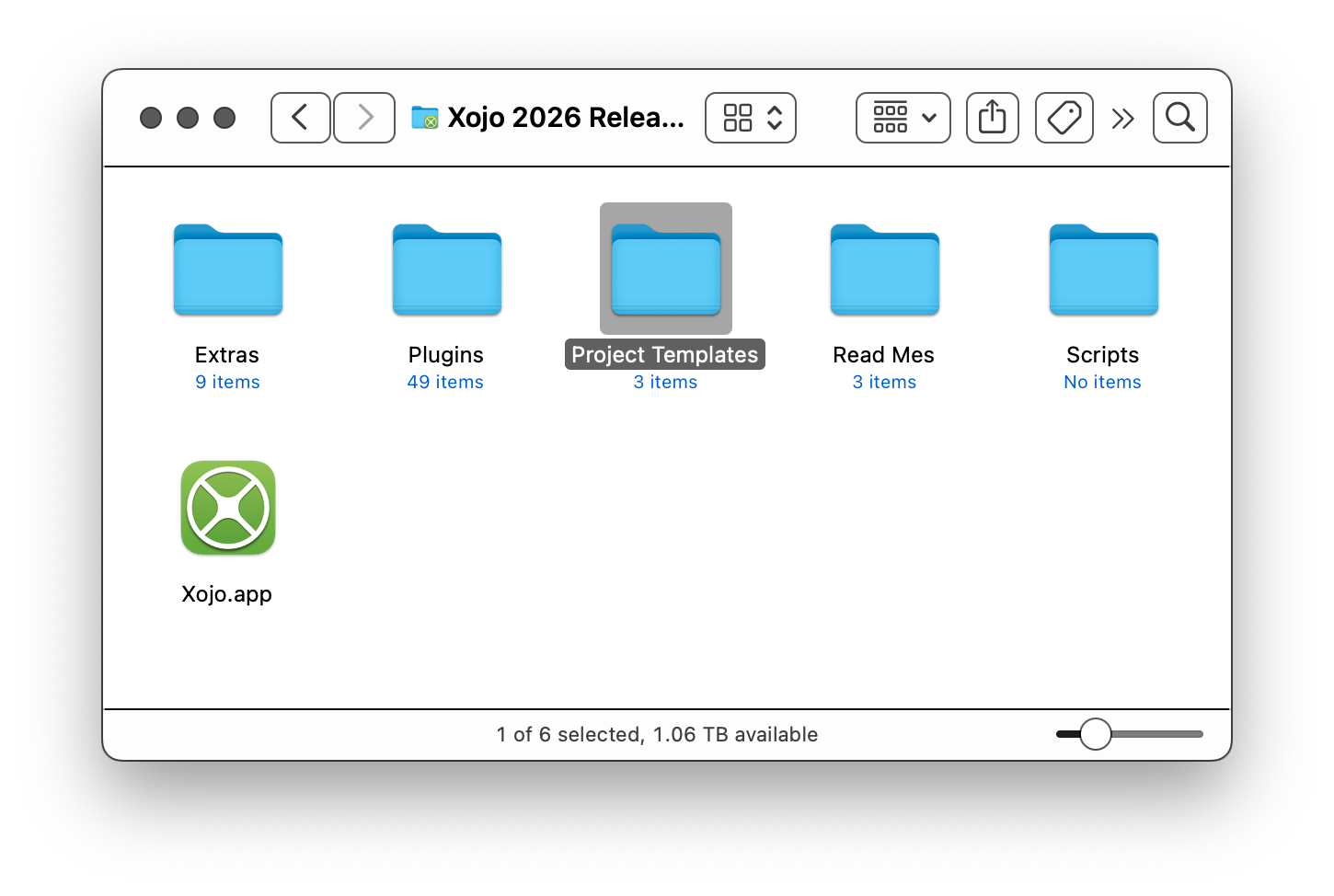
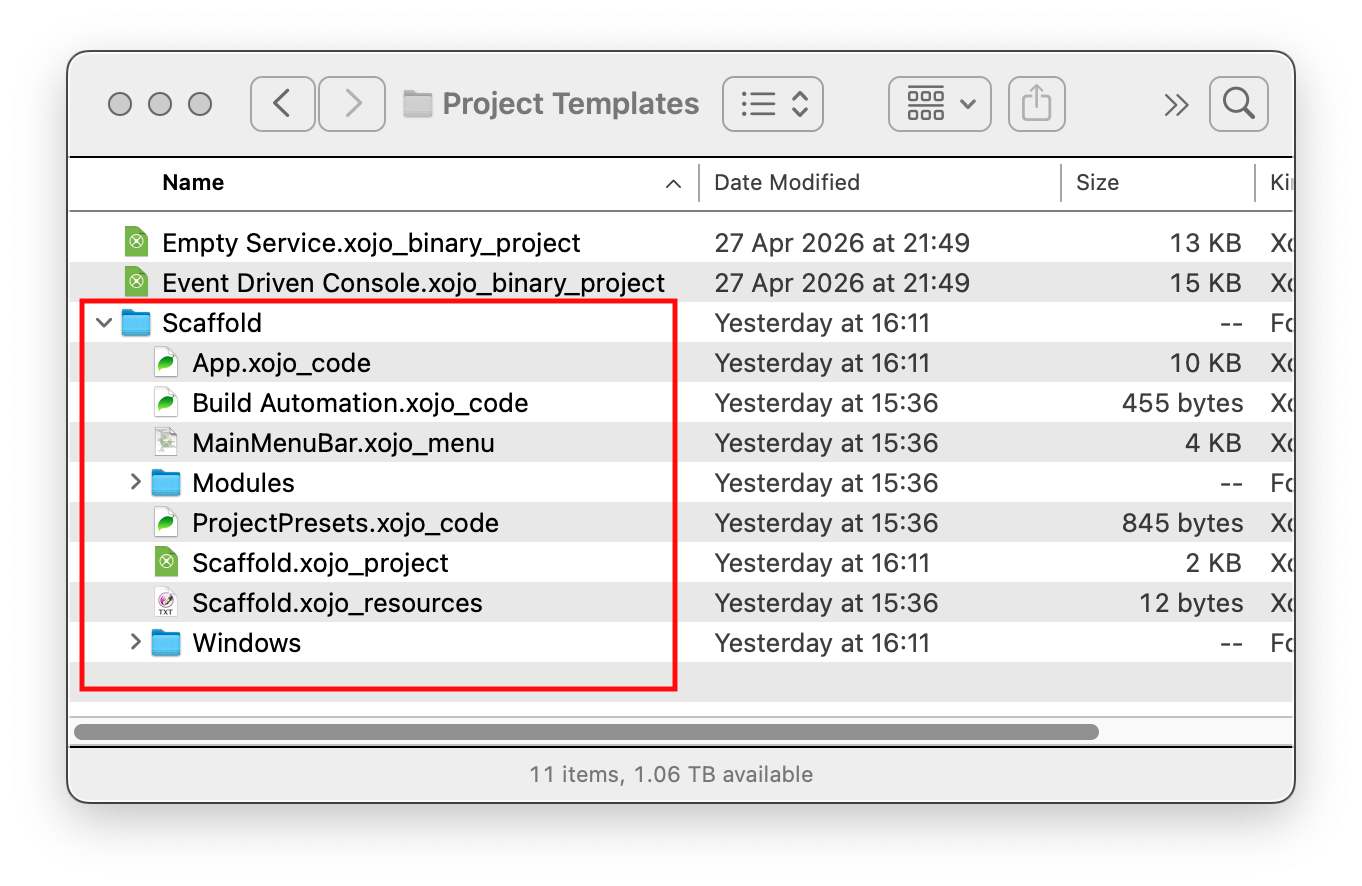
Bear in mind that this application is a template. Once created it will appear in the New Project... window in Xojo.
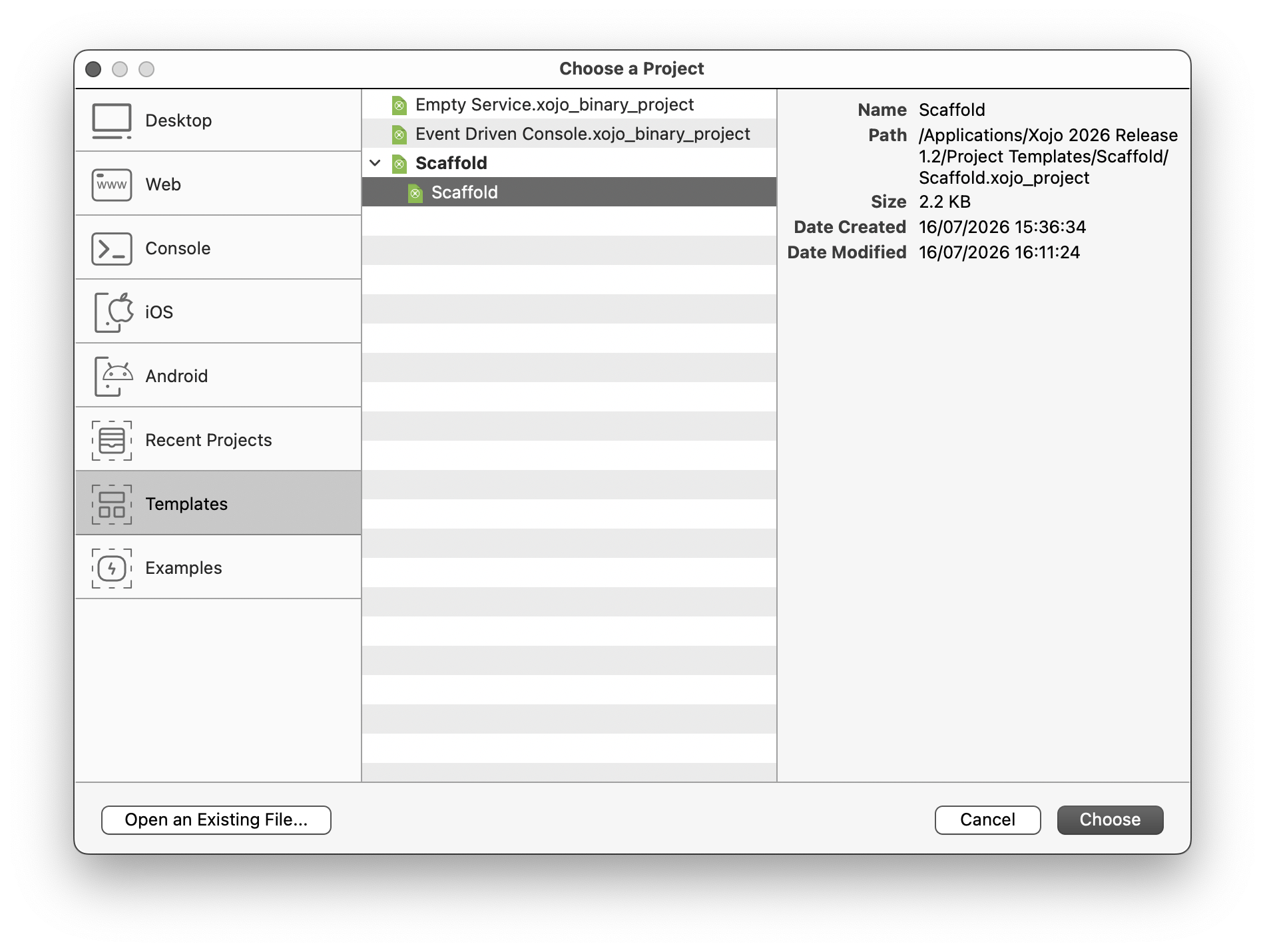
Choosing this template will result in a new empty Xojo project. Changes you make in the new empty project will be saved wherever you normally put your Xojo projects, but will not be reflected back in the template. If you do want to update the template you can open it up like any other project and just save the changes.
Drawback of Project Templates
Using project templates has one potential issue. Actually this issue is one that will be familiar to Xojo developers. When you update the Xojo application the new version is stored in a new folder, but existing project templates will not be copied over. Neither, incidentally, will any plugins, which is the part that is familiar to you if you are a Xojo user. So just bear in mind that if you use project templates then when you upgrade Xojo you will need to copy over any templates that you have created (as well as the plugins) to the new Xojo folder.
OK, I think that's enough for this introductory article. In the next part I will talk about the components that make up this template, with the rationale for each component.